Unlike KRISP, which transitions to a paid subscription after a limited trial, Sonar is 100% free forever without time limits or payment prompts. (일정 시간이 지나면 유료로 전환되는 KRISP와 달리, 시간 제한이나 결제 요구 없이 100% 평생 무료로 제공됩니다.)
1. What is SteelSeries Sonar? (스틸시리즈 소나란 무엇인가?)
SteelSeries Sonar is an AI noise cancellation program included in ‘SteelSeries GG’, a free audio software suite from gaming gear brand SteelSeries. (스틸시리즈 소나는 게이밍 기어 브랜드 스틸시리즈(SteelSeries)의 무료 오디오 소프트웨어 패키지인 ‘SteelSeries GG’에 탑재된 AI 노이즈 캔슬링 프로그램입니다.)
Powered by deep learning-based ClearCast AI technology, it eliminates both your microphone noise and incoming background/keyboard noise from other speakers. (딥러닝 기반의 ClearCast AI 기술을 사용하여 내 마이크의 소음 제거는 물론, 상대방 오디오에서 들려오는 키보드 및 주변 잡음까지 지워줍니다.)
It’s for a similar reason to why Microsoft Windows provides a screen capture feature to support the Xbox for gaming. (마이크로소프트 윈도우에서 게임용 XBox를 지원하기 위해 스크린캡쳐 기능을 제공하는 것과 비슷한 이유입니다.)
2. Pros & Cons (장점과 단점)
2-1. Pros (장점)
- 100% Free Forever: Zero payment prompts, usage time limits, or forced paid upgrades. (100% 평생 무료: 유료 결제 유도, 사용 시간 제한, 유료 플랜 전환이 전혀 없습니다.)
- No Hardware Restrictions: Works seamlessly on any PC, laptop, or microphone setup across Intel, AMD, and NVIDIA. (하드웨어 제약 없음: Intel, AMD, NVIDIA 등 어떤 PC/노트북 및 마이크 환경에서도 작동합니다.
- Bi-Directional Noise Reduction: Filters out noise from your microphone as well as incoming noise from other participants. (양방향 소음 차단: 내 마이크 소음 제거는 물론, 상대방에게서 들려오는 소음도 동시에 차단합니다.)
- Universal App Compatibility: Compatible with Zoom, KakaoTalk PC, MS Teams, Discord, and any app using a microphone. (모든 프로그램 지원: 줌(Zoom), 카카오톡 PC, MS 팀즈, 디스코드 등 마이크를 쓰는 모든 앱과 호환됩니다.)
2-2. Cons (단점)
- Sign-off Required: Requires creating a free account or logging in via Google or Discord social login. (회원가입 필요: 무료 계정을 생성하거나 구글 또는 디스코드 소셜 로그인을 통해 로그인해야 합니다.)
- Software Footprint: Bundled inside a larger gaming audio platform, making the installation footprint somewhat heavy. (프로그램 용량: 게임 통합 오디오 플랫폼에 포함되어 있어 백그라운드 리소스 용량이 다소 큽니다.)
- Windows Only: Currently available exclusively for Windows OS and does not support macOS. (윈도우 전용: 현재 Windows OS 전용으로 제공되며 macOS(맥북)는 지원하지 않습니다.)
3. How to Install SteelSeries Sonar (스틸시리즈 소나 설치하는 방법)
I’ll explain it in detail, step by step, with screenshot. (화면 캡쳐본과 함께 순서대로 자세히 설명해 드리겠습니다.)
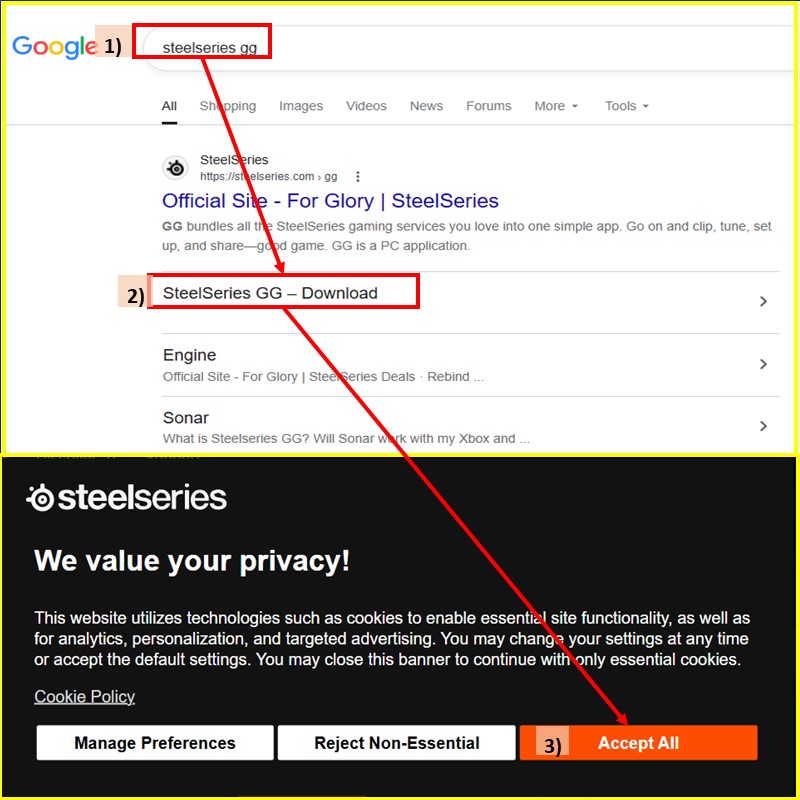
1) Type ‘SteelSeries GG’ into the search bar. (검색창에 `SteelSeries GG`를 입력합니다.)
2) Find a site that starts with ‘https://steelseries’ and select ‘SteelSeries GG – Download‘. Alternatively, you can click the link in the sentence right above this one. (‘https://steelseries’로 시작하는 사이트를 찾아서 ‘SteelSeries GG – Download`를 선택합니다. 또는 바로 앞 문장의 링크를 클릭하셔도 됩니다.)
3) On the SteelSeries homepage, click either [Reject Non-Essential] or [Accept All] in the Privacy Agreement! (스틸시리즈 홈페이지에 뜬 개인정보 동의에 [필수적이지 않은 항목 거부] 또는 [모두 동의]를 클릭!)
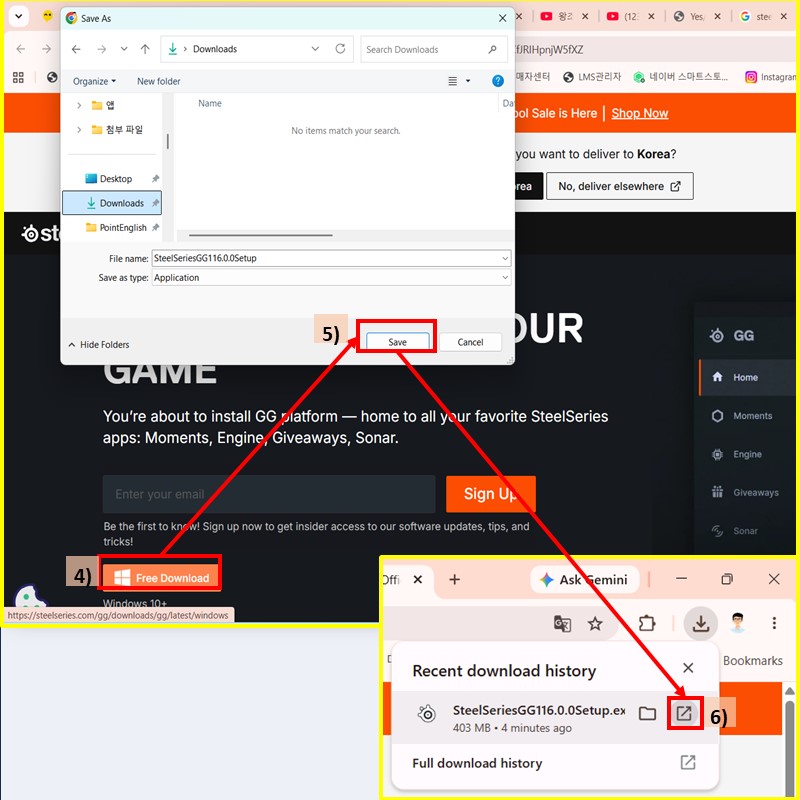
4) Click the [Free Download] button at the left bottom of the homepage! (홈페이지 좌측 하단의 [Free Download (무료 다운로드)] 버튼을 클릭!)
5) When the ‘Save As’ pop-up window appears, click [Save] to save the file; if this pop-up window does not appear, proceed directly to step 6). (‘다른 이름으로 저장’ 창이 뜨면, 위치에 [저장]을 하시고, 이게 안 뜨는 설정은 6) 번으로 바로 갑니다.)
6) Click the [Download] icon in the upper-right corner of your browser to run the file you just downloaded. (브라우저 우측 상단의 [다운로드] 아이콘을 눌러 방금 다운로드한 파일을 실행시켜 주세요.)
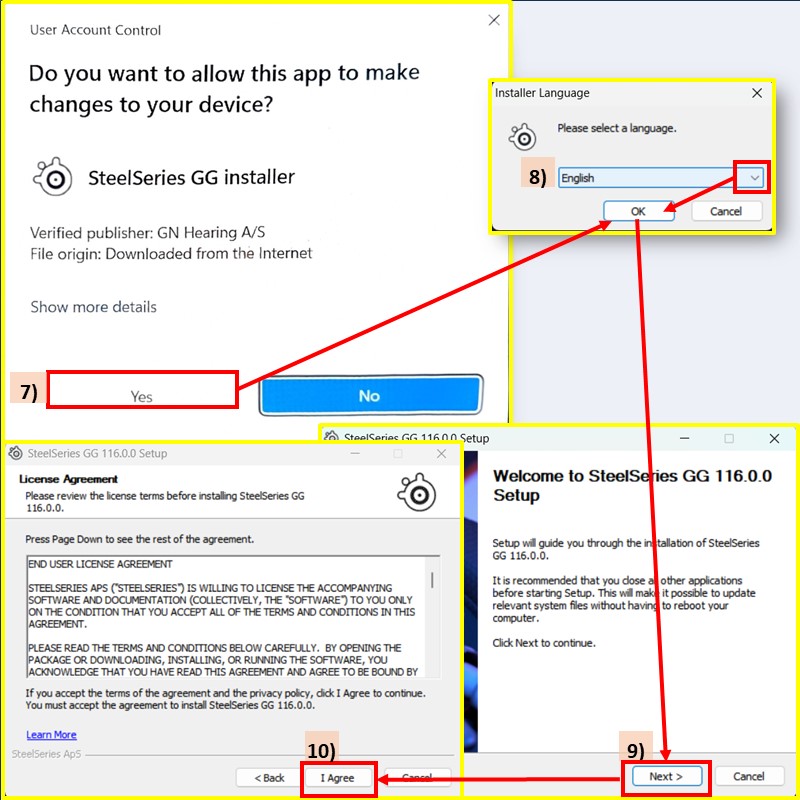
7) When the ‘User Account Control’ pop-up appears, select [Yes] in response to the question, “Do you want to allow this app to make changes to your device?” (‘사용자 계정 컨트롤’ 팝업이 뜨면 “이 앱이 디바이스를 변경할 수 있도록 허용하시겠어요?”라는 질문에 [예]라고 선택해 주세요.)
8) It will take a little while to unzip the data, and once that’s done, you’ll be asked to select a language. English, Korean and many languages are available. Check the [V] mark to the right of the language you want to select, and click [OK]! (그러면 데이터를 압축을 푸는데 시간이 좀 걸리고, 이게 끝나면 사용할 언어를 묻는 질문이 나옵니다. 영어와 한국어, 많은 언어들이 있습니다. 언어를 선택하는 위치의 우측에 [V] 표시를 눌러 선택하고 [OK] 클릭!)
9) When the ‘Setup’ window appears, click [Next]! (‘설치’ 창이 뜨면 [다음]을 클릭!)
10) Click [I Agree] in ‘License Agreement’ window that appears immediately afterward! (바로 ‘라이선스 동의’ 창에도 [동의]를 클릭!)
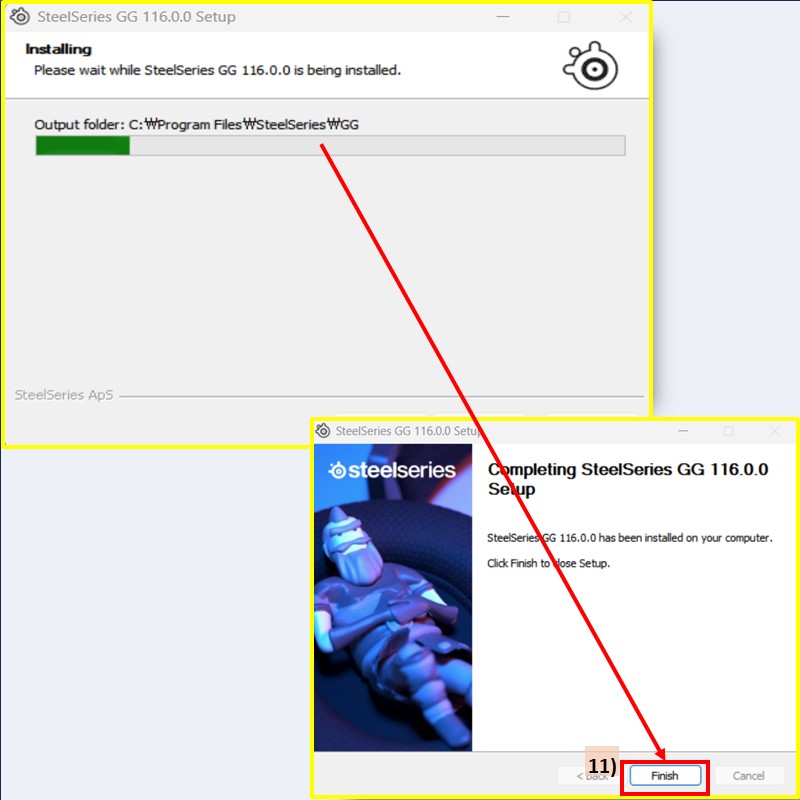
11) An ‘Installing’ window will appear, and the process will take about 5 minutes. When it’s finished, an “Completing SS GG Setup” window will appear; click [Finish] to complete the installation. (‘설치 중’ 창이 뜨고 시간이 5분 정도 걸립니다. 끝나면 ‘설치 완료’ 창이 뜨고 [마침]을 클릭하면 설치는 종료.
4. How to Use SteelSeries Sonar (스틸시리즈 소나 사용법)
Even after installation is complete, you’ll need to follow the three steps below before you can start using it. But it’s not complicated. (설치가 완료된 후에도 아래 3단계를 걸쳐야 최종 사용이 가능합니다. 하지만 복잡하지 않습니다.)
Step 1. Sign Up and Log In (회원 가입 후 로그인 하기)
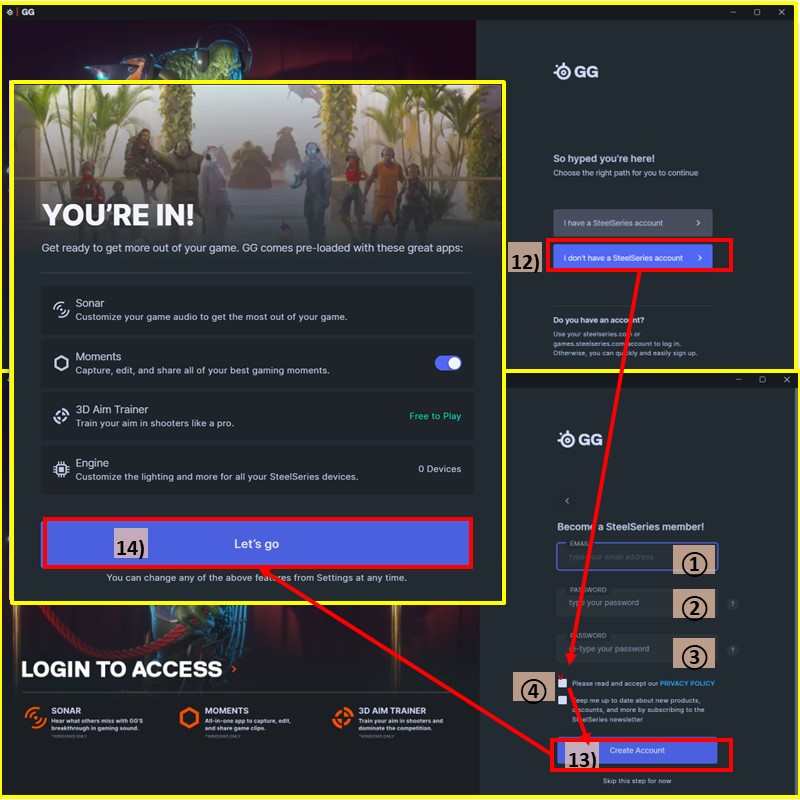
12) Once the program installation is complete, the GG program will open and a welcome message will appear. Since you’re likely not a member yet, select [I don’t have a SteelSeries account]! (프로그램 설치가 종료되면, GG 프로그램이 열리고 바 환영 안내문이 뜹니다. 당연히 비회원이실 테니 [SteelSeries 계정이 없습니다]를 선택!)
13) In the ‘Become a SteelSeries member!’ window, ① type your Google email address, ② type your password (it can be different from your Google account password), ③ re-type the password, and ④ check the box next to [Privacy Policy]! Click the [Create Account] button! You don’t need to check the box for “Keep me up to date new products, …” (회원 가입 창에서 ① 구글 이메일 주소를 입력하고, ② 비밀번호를 입력(구글 계정과 달라도 됨), ③ ②를 반복 입력하고, ④ [개인정보 보호 정책] 앞에 체크 박스에 체크! [계정 생성] 버튼을 클릭! “소식지를 받겠습니다”는 체크 안 하셔도 문제없습니다.)
14) Click [Let’s go] to complete registration! ([시작해요] 클릭하면 회원가입 완료!)
Step 2. Enable AI Noise Cancellation in Sonar (Sonar에서 AI 소음 제거 활성화하기)
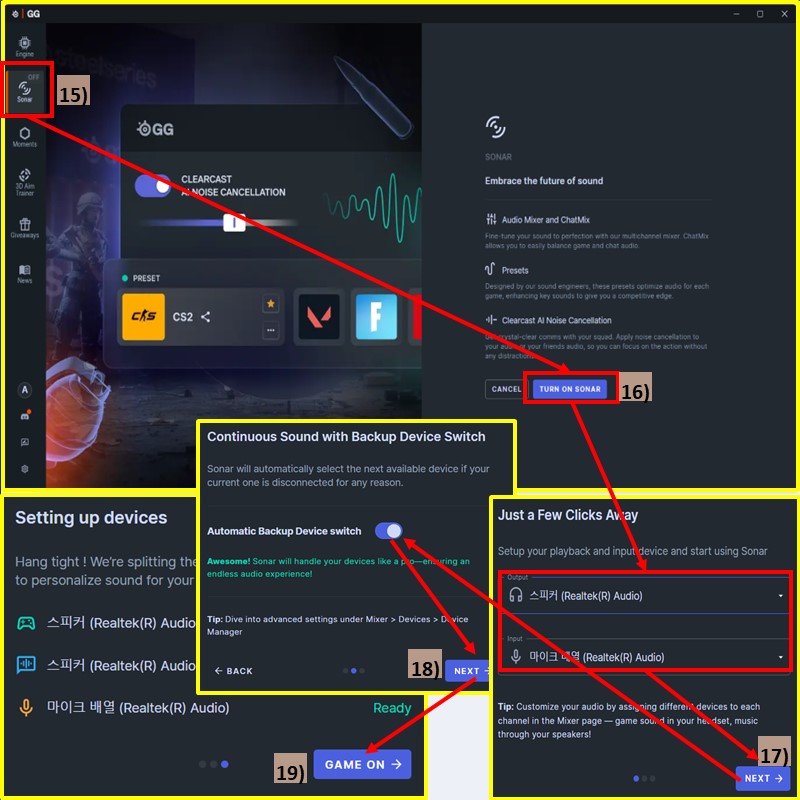
15) Select the [Sonar] tab from the left-hand menu of the program! (프로그램 좌측 메뉴에서 [Sonar] 탭 선택!)
16) Click [TURN ON SONAR]! ([소나 켜기]를 클릭!)
17) From the input list, select the actual microphone device you are currently using. If you haven’t connected a separate headset, the default microphone for most users is Realtek. (`INPUT` 목록에서 현재 사용 중인 실제 마이크 장치를 선택합니다. 별도의 헤드셋을 연결하지 않으셨다면, 대다수 분들은 Realtek이 기본 마이크입니다.)
18) Turn on [Automatic Backup Device Switch] to prevent call dropouts. Then click [Next]! ([자동 백업 장치 전환]을 켜서 통화 중간에 끊김을 예방하세요. 그리고 [다음] 클릭!)
19) Click the [GAME ON] button to complete Step 2! ([시작] 버튼을 눌러 2단계 완료!)
Step 3. Configure Microphone Settings in Windows and the Calling App (윈도우 또는 통화 앱에서 마이크 설정하기)
A. Configuring the Microphone in a Calling App (통화 앱에서 마이크 설정하기)
This explanation is based on Microsoft Teams, but the same applies to other calling apps. (이 설명은 마이크로소프트 팀즈를 기준으로 하였으나 다른 통화앱에서도 동일합니다.)
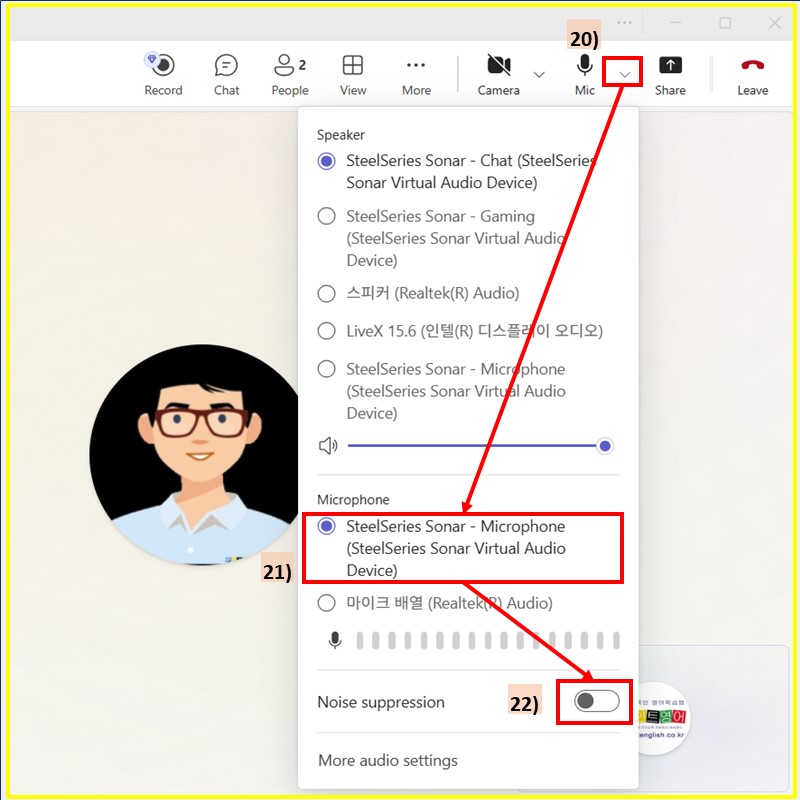
20) Click the [V] icon to the right of the microphone to open [Open audio options]! (마이크 우측의 [V]를 눌러 [소리 설정]을 클릭!)
21) In the Sound Settings window, set the microphone to [SteelSeries Sonar Microphone (SteelSeries Sonar – Virtual Audio Device)]. (소리 설정 창에서 마이크를 [SteelSeries Sonar Microphone(SteelSeries Sonar Virtual Audio Device)]로 지정!)
22) Turning off [Noise supression] is recommended. Since SteelSeries already completely eliminates background noise, keeping Teams’ noise reduction feature enabled can result in double filtering, which may actually cause your voice to cut out. (‘소음 감소’를 해제하는 것을 추천. 스틸시리즈가 이미 소음을 완벽히 없애주고 있기 때문에, 팀즈의 소음 감소 기능이 켜져 있으면 필터가 2번 겹쳐서 오히려 목소리 끊김 현상이 발생 수 있습니다.)
B. Configure Microphone in Windows (윈도우 마이크 설정하기)
This method allows you to configure your PC’s built-in microphone directly, without following the steps in Section A. (이 방법은 A. 과정 없이 PC 자체의 마이크를 한 번에 설정하는 방법입니다.)
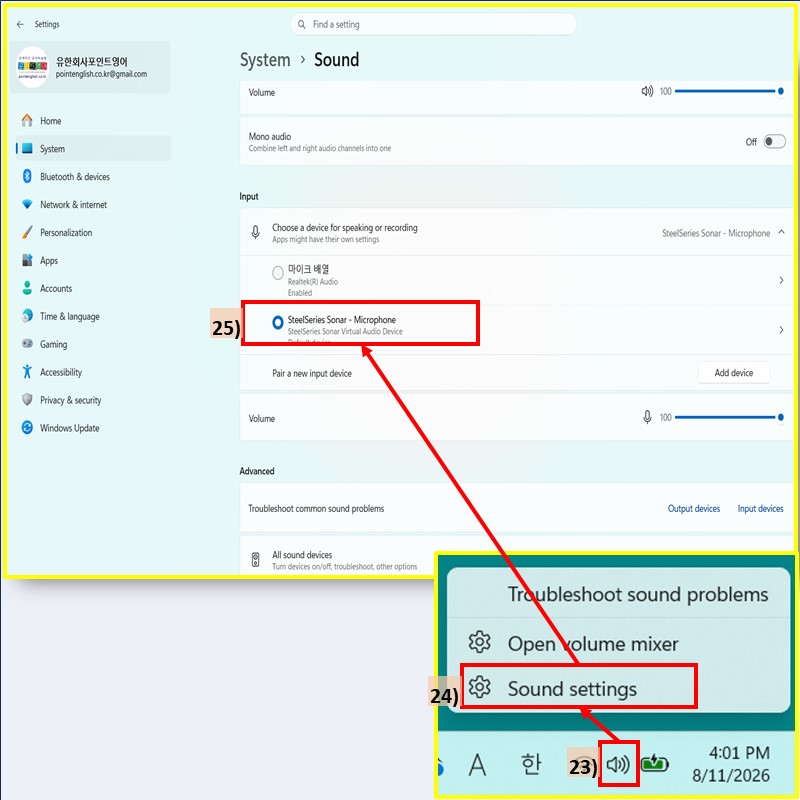
23) Right-click the speaker icon in the lower-right corner of the Windows taskbar! (윈도우 우측 하단 스피커 아이콘을 우클릭!)
24) Select [Sound Settings]! ([소리 설정]을 선택!)
25) Change the input (microphone) to SteelSeries Sonar Virtual Microphone! (입력(마이크)을 `SteelSeries Sonar Virtual Microphone`으로 변경!)
5. Frequently Asked Questions (FAQ) (자주 묻는 질문)
Q1. Is it truly 100% free forever? (정말 평생 100% 무료가 맞나요?)
A1. Yes, there are no credit card requirements or trial expiration periods; it is completely free for life. (네, 신용카드 정보 입력이나 유료 체험 기간이 없으며 평생 무료로 사용할 수 있습니다.)
Q2. Can I use it without a high-end graphics card like NVIDIA RTX? (고사양 그래픽카드(NVIDIA RTX 등)가 없어도 사용할 수 있나요?)
A2. Yes, it works smoothly on standard Intel or AMD integrated graphics laptops without a dedicated GPU. (네, 외장 그래픽카드 없이 일반 인텔/AMD 내장 그래픽 노트북에서도 부드럽게 작동합니다.)
Q3. Does noise cancellation work well on Zoom and KakaoTalk? (줌(Zoom)이나 카카오톡에서도 소음 제거가 잘 작동하나요?)
A3. Yes, because it uses a Windows virtual microphone system, it works perfectly across all microphone-supported apps. (네, 윈도우 가상 마이크 방식을 사용하므로 마이크를 지원하는 모든 앱에서 완벽하게 작동합니다.)
Q4. Do I need to restart (reboot) my computer after installation? (설치한 뒤 컴퓨터를 다시 시작(재부팅)해야 하나요?)
A4. No, rebooting is not required; you can activate and use it immediately after installation. (아니오, 재부팅이 필요 없으며 설치 완료 직후 바로 활성화하여 사용할 수 있습니다.)
Q5. Why is account registration required? (회원가입은 왜 필요한가요?)
A5. It is used to back up your custom audio settings to the cloud, and quick sign-up via Google account is supported. (마이크 오디오 커스텀 설정값을 클라우드에 저장하기 위함이며, 구글 계정을 통한 간편 가입이 가능합니다.)
#포인트영어 #노이즈캔슬링설치 #NoiseCancellation #SteelSeries설치 #스틸시리즈사용법
↓↓↓ 국내 최저가 수준의 포인트영어 수강료 확인하고, 무료 레벨테스트 신청하기 ↓↓↓